
Emma Partnow

Forum Replies Created
-
AuthorPosts
-
Emma Partnow
MemberHello Matt 🙂
A Very Warm Welcome to You; Look Forward to seeing you on the Forum 🙂MemberA Very Warm Welcome to the Forum 🙂
MemberHaroon K, post: 4377 wrote: I think Phil should consider using your material for articles on using Ableton for DJing 🙂
Thank You So Much my Friend 🙂
It took me a While to Learn; but I am Happy to Share My Knowledge as I don’t see Anyone as a Competitor; only as a Compardrae 🙂MemberHaroon K, post: 4376 wrote: To help me with track selection I use the star rating tag in itunes/traktor, not for rating how well I like a track, I like them all or I would n’t have them, but rather where the track would fit in my sets. I do this after buying and analysing keys. Here is how I mark them:
* = Chillout
** = Warm Up
*** = Transition
**** = Peak
***** = Classic/Dance floor bombUsing that along with genre and key usually helps to narrow down the selection easy enough. If I get in bother playing a particular style, I can easily find a classic to pull me out.
That is Excellent Haroon 😎
I always used to get Stuck on the Star Ratings because when I put a * it was like ‘Do I Want To Play This’; and then a ** was ‘This Seems Mediocre to me’; so I think I have to go back and Re-Evaluate my System; as the way you Use Yours is Great; and will Help Me Organise How I Begin a Set and Move Towards the Classics 🙂July 22, 2011 at 12:50 pm in reply to: Hi My Name Is Paul McGuinness I'am DJ/Producer New To The Forum #4386MemberHello Paul 🙂
I think Respect and Praise Should Be Distributed when Deserved 🙂
Yes; your Links Work Perfectly Thank You;
‘Virus’ was Released on my Birthday This Year :D;
I will have to go back and listen to your other Tracks when I don’t Feel So Tired (Hospital Today); and can Appreciate them More; but I Thought Your Remixes Were Excellent; and I think your Friend who is doing the Mastering has learned his Trade Well 😎MemberSorry my Friends; it took me a couple of Hours to do all that so I Missed your Posts;
But if anything I have Said is Helpful; then I am Very Grateful 🙂MemberU31, post: 4357 wrote: Im starting to get the hang now, a few difficulties in warping very complex tracks, and id like to be able to master loops and triggering them on the fly.. tho i have worked out how to type in the position of the beatmarkers and loop length
For your Reply to ‘Triggering Loops On the Fly’; I will go into Session View;
First of all; A Loop Can Be Audio Of Any Length (or MIDI); I Cut Out Samples/Loops from Tracks Virtually Every Night;
And So Far I Have Managed to Get Down to Cutting Out 64th Notes ! (Single Snare Hits/Hi-Hats);
Anyway; if you Struggle in Arrangement View with Cutting Out Samples; this Can Also Be Done in Session View;
In the Screenshot Below I have a 4 Bar Dubstep Loop (the Loop Can Be Any Size);
And I Have Put Warp Markers On Every Kick; Snare; Open H-Hat; Closed Hi-Hat; And Also A Double Speed Hi-Hat (where I have Pressed +2 on the BPM – Underneath The BPM Counter in the Sample Box – Which Is a Cool Effect;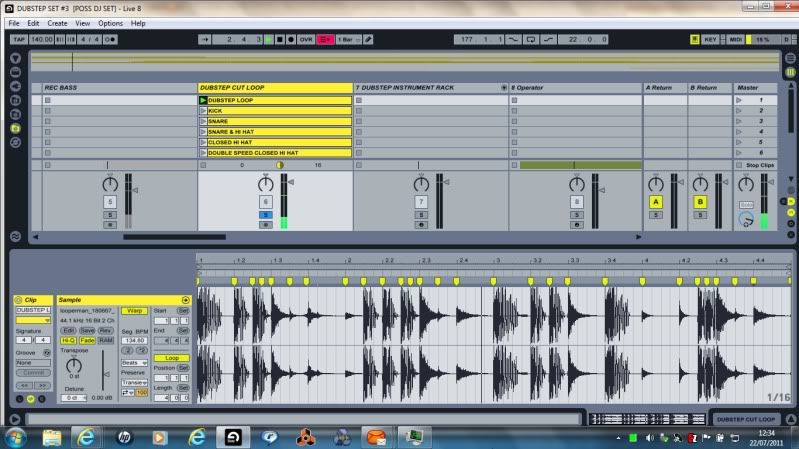
You Will Also Notice that in my ‘Channel’ Named ‘Dubstep Cut Loop’ I have 6 ‘Clips;
The First Clip is the Whole Loop;
The Second Clip is a Duplicate Of the First Loop; But With Just The Kick Drum Looping; This Is Done By Making Your Loop Brace In The Waveform Screen ‘Shorter’ So That ‘All You Hear’ Is The Kick Drum Looping;
This Is Shown in The Following Screenshot; Notice That The Loop Brace Is Just Looping On The Kick Drum; and the Rest Of The Loop Is ‘Greyed Out’; Meaning ‘Not Active’;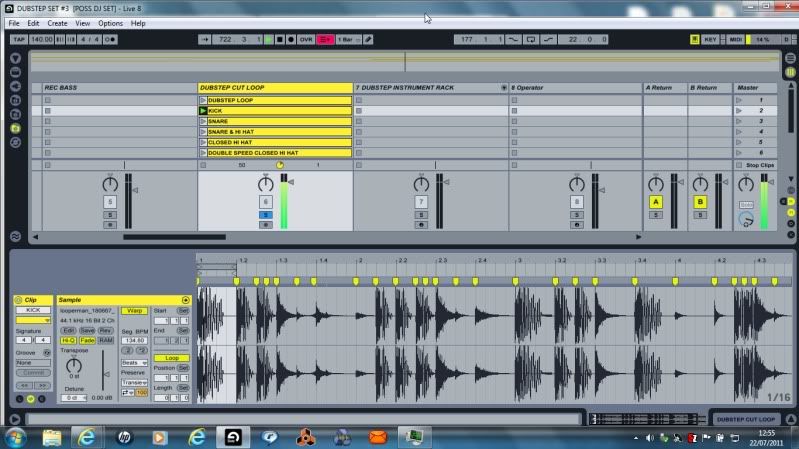
The Next Screen Will Show You The Snare Looping On Its Own; (3rd Clip Down); and in Order To Be Able To Work On This Clip So That I Could Loop The Snare; Again I Have Duplicated The First Clip (the 4 Bar Loop);
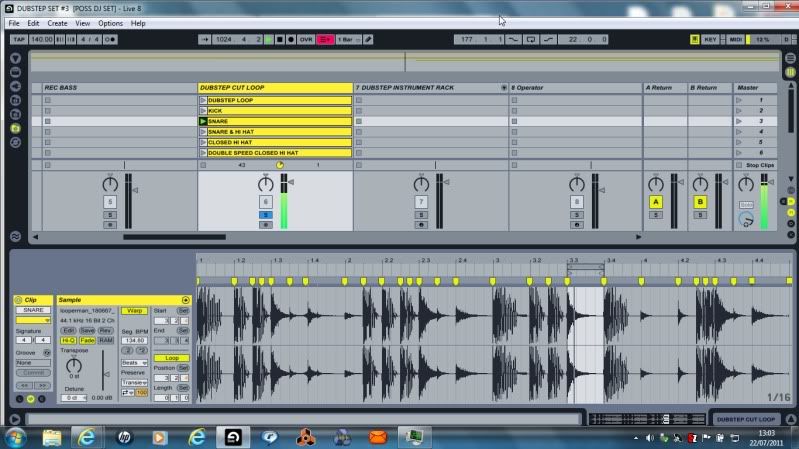
And Finally I will Explain How this Is Of Benefit To You 🙂
You Said that You Would Like To Be Able To Trigger Loops ‘On The Fly’;
If Say For Instance You Had Part Of An Acapella; or a Rolling Bassline; or a 4 X 4 Kick Drum (Literally Anything that Will Loop Without Any Clipping Or Popping at the End – this is Achieved By Just Making Slight Adjustments);
You Can Do Exactly What I Have Shown In These Screenshots;
The Important Thing Is To Have The Whole Track As Clip 1 (in my Case Just a 4 Bar Loop); and You Duplicate This Track (Or Loop) As Many Times As You Wish; Then; Within The Waveform Of The Track; Set Your Warp Markers Around The Section that You Wish To Use As A Loop; (And You Can Literally Have 100’s If You Wish);
Then; To Fire Them Off ‘On The Fly’; All You Do Is Press Whichever Clip You Wish; And In Any Order You Wish;
So In My Above Example I Can Make A Drum Loop That Is Completely My Own Just By Firing Off The Clips In The Order I Choose;
There Is A More Complicated Way Of Doing This Also; which Again I Would be Happy To Explain;
But Check This Out For Now (And The Warping); And Let Me Know How You Get On 🙂 🙂MemberAnd Of Course (to Add to my Previous Post); to Set Up Other Cue Points; say at the First Break; at the Second Break; where the Vocals Begin; Wherever; you just Duplicate the Track and Add your Different Cue Points so you can Start The Track at Different Parts; (You can Add As Many Cue Points and have As Many Duplicates As You Wish :));
U31, post: 4357 wrote: Im starting to get the hang now, a few difficulties in warping very complex tracks, and id like to be able to master loops and triggering them on the fly.. tho i have worked out how to type in the position of the beatmarkers and loop length
Hello my Friend 🙂
(In the Sample Box – to the Left Of the Waveform shown above in my Screenshot); Underneath the BPM there is Another Drop Down Box that by Default is Set To ‘Beats’; if you have a Complex Track; Click the Drop Down Box and Choose ‘Complex Pro’; this will Help You when Warping Full Tracks; Acapellas; Tracks Before the ’80’s; and Tracks with Musicians Rather than Electronic Music;
In my Screenshot Below you will see that I have Set My Loop Brace (the Bar in Black) 4 Bars from my First Warp Marker; (I have also Set My Warping Screen to ‘Narrowest Grid’ by Right Clicking in the Area Of The Waveform);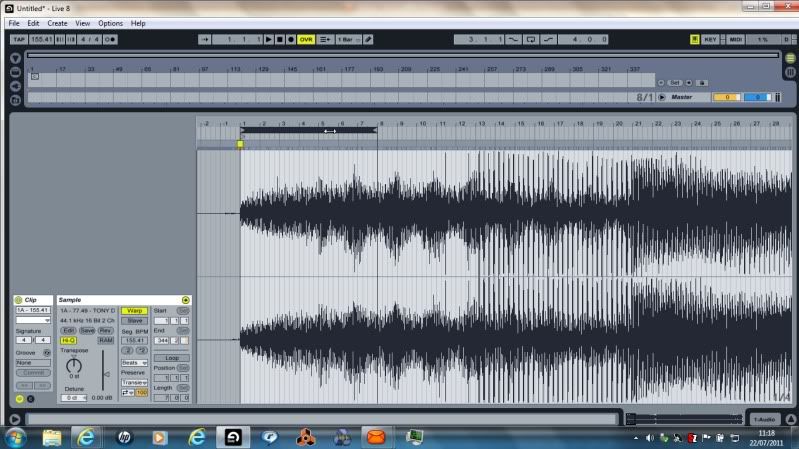
The Next Step is to Make Sure that the ‘End Of The Loop Brace Is On A Beat’; so we Zoom in to check;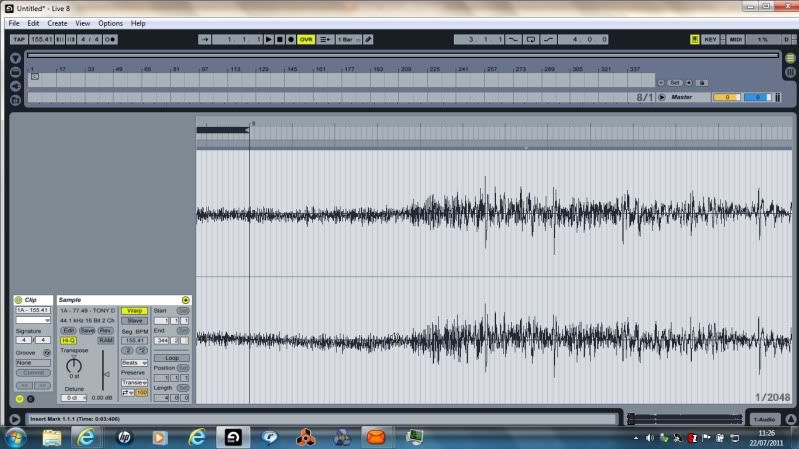
The End Of The Loop Brace is Not In Fact Landing On A Beat; So We Need To Make Sure It Does;
So; First Of All I Will Put a Warp Marker On The Largest Beat (Snare Probably); and then Shift This Warp Marker To The Closest Denomination Of A Bar I Can See; (This Beat Must Land On A Denomination Of A Bar);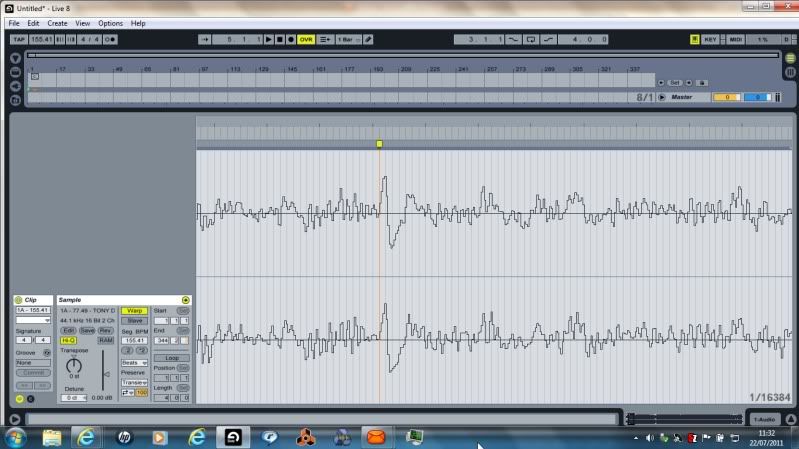
I have now Shifted this Warp Marker One Step To The Left; (this is Done Just By Clicking On The Warp Marker And Dragging Left);
Our Next Step is to Make Our Loop Brace 8 Bars Long; So Do This; and then Place The Beginning Of The Loop Brace On The Warp Marker We Made (After 4 Bars);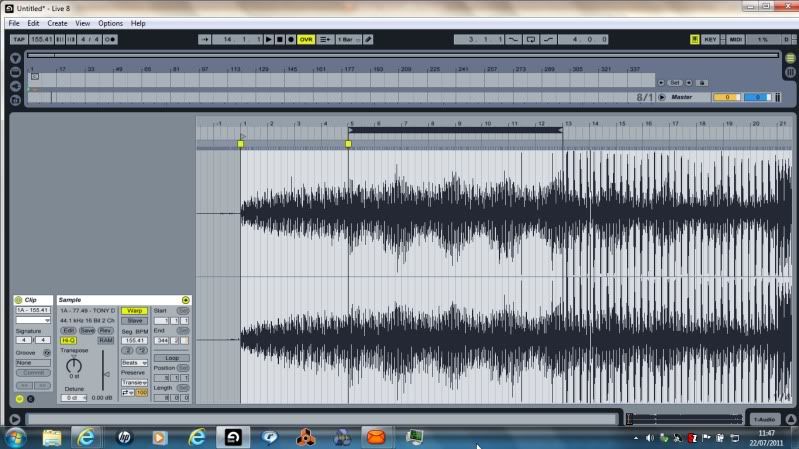
Now You Do Exactly What You Do When You Placed Your First Warp Marker After The 4 Bars; Placing A Further Warp Marker; and Adjusting If Necessary;
To Help You Move Your Loop Brace Through The Track More Quickly After This; (Whilst It Is Black – Which You Do Just By Clicking It); You Press Your ‘Up Arrow Key’ and the Loop Brace Will Move Forward 8 Bars 🙂What I Normally Do is Place One Warp Marker After 4 Bars; Then Move Forward 8 Bars and Place Another; Then One More 8 Bars Further In; Then One At 16 Bars After That; Then 16 Bars After That; Then every 32 Bars Following 🙂
If You Find a Track That ‘Drifts Badly’; at that Point (until you Get Past ‘The Drift’) I Go Back to 4 Bars At A TimeMemberSorry Stef; this is not possible;
The Pioneer DJM-500 is not MIDI capable and cannot control VirtualDJ in any way;
It can only be used as a Standard Analogue Audio Mixer;
For MIDI Capability you would need a Mixer such as Pioneer DJM-700 or DJM-800July 21, 2011 at 10:12 pm in reply to: Hi My Name Is Paul McGuinness I'am DJ/Producer New To The Forum #4337MemberWell; Both of the Tracks on your Vinyl ‘Animal Jazz Volume 1’ are Excellent Paul 😎 😎
Superbly Composed; and with Sublime Production; No Wonder Labels are Still Looking At You Now 🙂 🙂MemberMany Best Wishes for your Success in All Your Projects Mike 🙂
MemberYes; this is Easy Mike :);
If you have Ableton (and I can’t remember if you have I am Sorry);
Go to Session or Arrangement View (whichever you Feel Comfortable with);
Double Click the Track so you can see the Waveform (enlarge it if Necessary by Pulling on the Bar Above the WaveForm;
Decide which Part of the track you want it to Start At;
Then Pull the Start Marker of the Track (usually Very Close if Not On the First Warp Marker) to the Beat or Break you want the Track To Start On; and then when you Press Play; the Track Will Begin From There 🙂Screen 1:
Start Marker At Beginning Of Track: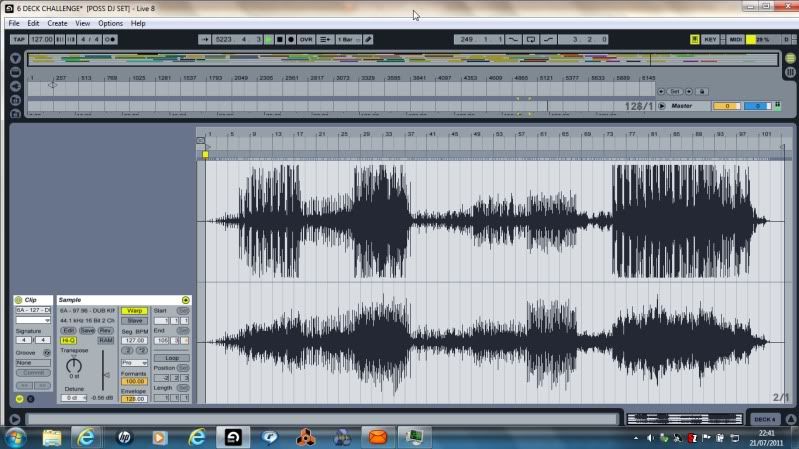
Screen 2:
Start Marker Moved to a New Cue Point: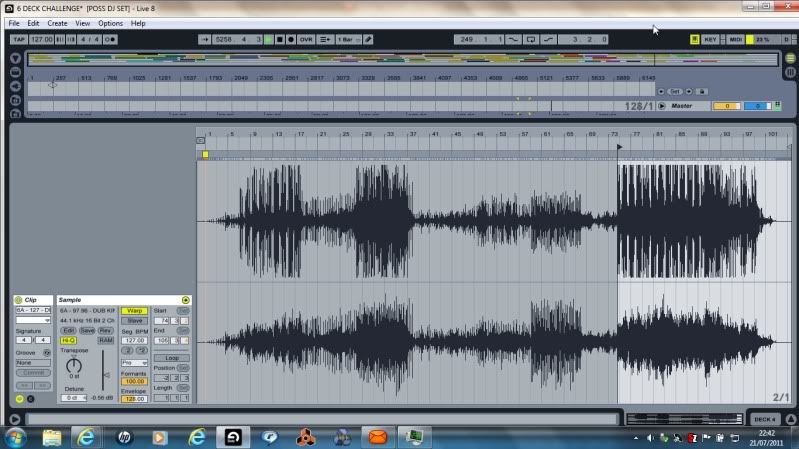 Member
Cool; Thank You for the Info Haroon 🙂
MemberLast bit of this Post for you Pierre 🙂
[media=youtube]nFBleXx-qmY[/media]
[media=youtube]2IgmHFSisag[/media]
[media=youtube]kPe226EQMEI[/media]
[media=youtube]YQpLjjcQ8Lc[/media]
MemberHello Pierre 🙂
Apart from DJ’ing; my Life is Spent Cutting Samples from Other Tracks 🙂 🙂I have just spent over half an hour looking for Tutorials on How to Sample from Original Tracks; but have not been able to find one; so what I will do is Post my instructions by Screenshots; but as that will take some time; I may not be able to do that until tomorrow; but I will Do It For You 🙂
First of all though; this is a Video from Ableton that shows some of the Capabilities of the ‘Sampler Instrument’; (I don’t actually use ‘Sampler’ as I am Not Brainy Enough); but it is still a Good Video;
http://www.ableton.com/sampler
This Next Video is the Video you asked for from the Man who makes Sounds from ‘Found Sounds’; he is Great 🙂
Creating a snare drum using found sounds in Ableton (Part 1)
[media=youtube]FvImLI_KHGw[/media]Creating a snare drum using found sounds in Ableton (Part 2)
[media=youtube]rQP3XAfdBtI[/media][SIZE=2][SIZE=3]I Do Understand You are a Beginner (as I was not too long ago); I don’t have a Controller myself (I just use my Computer Keyboard; so we will talk about Controllers at a Later Date :)[/SIZE][/SIZE][SIZE=2][/SIZE]
From the Beginners Point Of View of Making a Track; Please watch these Video’s which are made using the Demo Version of Ableton 🙂[media=youtube]8i5E0hrVPFI[/media]
[media=youtube]iM4v524Zqog[/media]
-
AuthorPosts