Hi Frank,
There are a few things it could be. I’ll go through those in a sec. First, what could have caused it (and therefore what to do to prevent it) – have you at some point done any of the following?
– Plugged it into a different USB port
– Installed drivers for another midi/audio device, and, if so, does that device work properly? (they may be interfering with each other)
– Installed any new software (at all)
– Updated any drivers for any other bit of hardware on your laptop
If the answer is yes to any of these can you tell us (If the following doesn’t help) ?? – Information is power when it comes to problem solving!!
A possible solution:
(If you have not already done so, I would strongly suggest updating to Windows 8.1 over 8 – go through the “Store” app to do so.)
– Update Windows fully if you have not already done so (Using Control Panel -> Windows Update)
– Uninstall any drivers for the numark (Control Panel -> Programs and Features) – remove anything with the word “numark” in either the program name or publisher.
– Restart
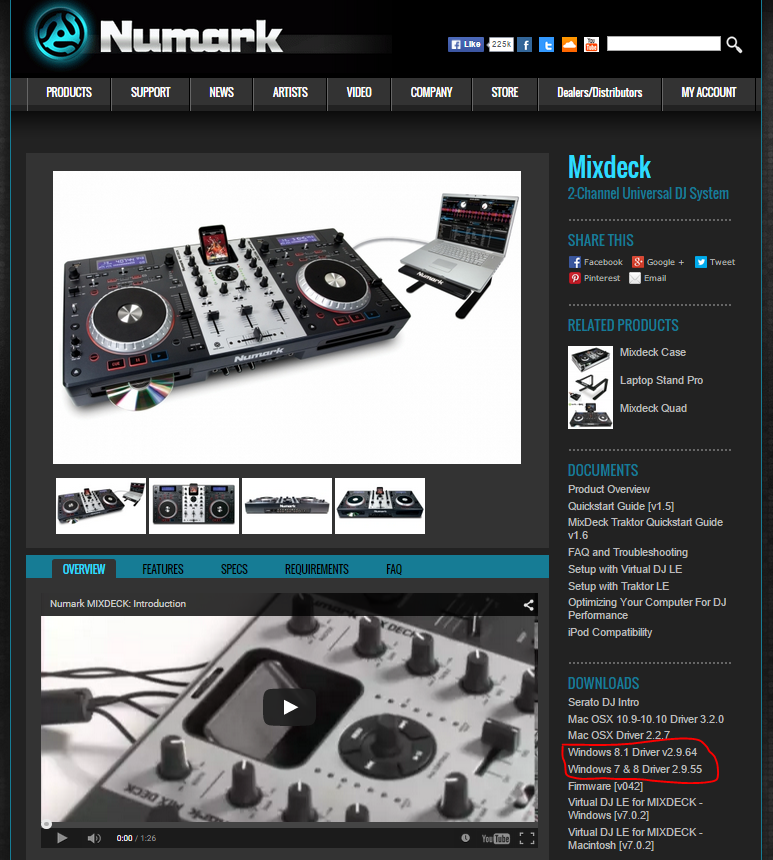
– Re-install the correct drivers from Numark – with the Mixdeck plugged into the USB port you want to use to gig from whilst you do so (use the link shown on the screenshot below).
– Restart without the mixdeck connected
– Connect the mixdeck and wait for windows to register it.
– Check Device Manager. If it is showing as unrecognised, right click, properties. Go to driver, click “Update”. Select “Browse my computer manually for a driver” then find the file with the driver in it where it downloaded it to before, select it and let it chug for a bit.
– If it showing all fine, go to: Documents -> Virtual DJ. Rename the “Settings” file to “Settings2”
– Start VDJ – it will load up as if you have never launched it before – do not worry!!
– Select the audio device. It should hopefully now all work fine. If, at this point, it stops working again then you know that the issue lies with the link from your controller to windows, not with VDJ.
– Close VDJ
– Go to the Virtual Dj folder again. Delete “settings” and rename “settings2” back to “settings”.
– Launch VDJ again, and select the audio device.
– Check in device manager. If it has gone wrong now, you know that the issue lies with your VDJ settings..
Hope that helps – tell us whether it does or not and hopefully we will be able to help you if it doesn’t!!
bob6397

.

